How to Make a Free Voiceover for Your YouTube Videos
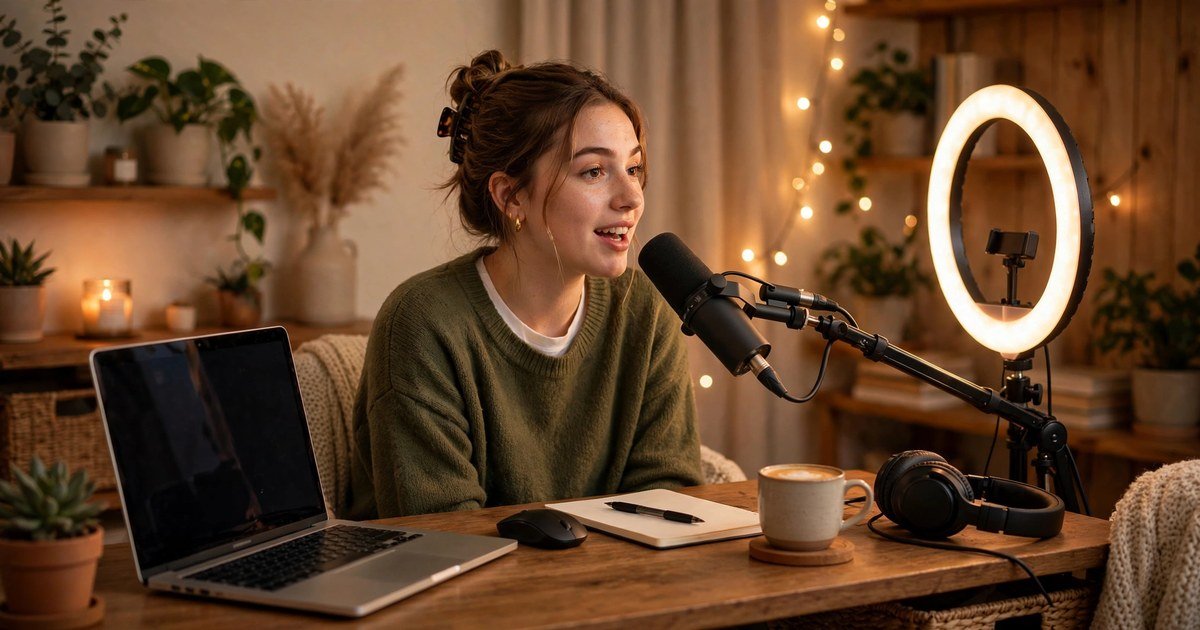
Making YouTube videos is fun, but speaking in them can be hard. Maybe you feel shy. Maybe your room is noisy. Maybe English is not your first language and you worry about your accent. Good news: you can make a clear, professional voiceover for free, without recording your own voice.
A free text to speech tool turns your written words into spoken audio in a few seconds. In this guide, I will show you each step — from writing your script to adding the voice to your video. No microphone. No money. Let’s start.
Why Use an AI Voiceover for YouTube?
Thousands of YouTube channels never show the face of the person who makes them, and never use their real voice. News channels, facts channels, money explainers, motivational videos, kids stories — many of them use an AI voice. Here is why so many people do it this way.
First, no more shyness. Many smart people never start a channel because they do not like the sound of their own voice. With a text to speech tool, this problem goes away. Your ideas matter, not your voice.
Second, no noise problem. Cars, fans, family — at home every sound gets recorded. AI audio is always clean, with zero background noise.
Third, it saves a lot of time. When you record yourself, one mistake or one cough means you start again. With AI, you just fix the words and make the audio again in seconds.
Fourth, the voice never changes. When you record yourself, you sound tired one day and fresh the next day. AI gives you the same clear voice in every video. Your channel sounds professional.
Last, it is perfect for channels where you never show your face. You can make a full channel with ready-made video clips plus an AI voice. Many tools also have Hindi, Urdu, and other local voices, so you can make videos for people in your own area, in their own language.
Here is a quick comparison:
| Feature | AI Voiceover | Recording Yourself |
|---|---|---|
| Cost | Free | Microphone needed |
| Background noise | Zero noise | Room noise recorded |
| Time | Ready in minutes | Hours of retakes |
| Voice consistency | Same in every video | Changes every day |
| Languages | Many languages | Only your own |
Write a Simple Script
A good voiceover starts with a good script. The AI reads exactly what you write, so write the way you speak. That is the most important skill here.
Write short sentences. One idea in one sentence. Read each line out loud before you finish it. If it sounds odd when you say it, it will sound odd when the AI says it too.
Bad: The utilization of artificial intelligence has transformed content creation methodologies.
Good: AI has completely changed how people make videos today.
Simple words always win.
Keep your start short and strong. People decide in the first fifteen seconds if they will keep watching. Do not start with a long hello. Start with what they will get. A simple trick: write your video title first, then make the first line of your script match it. When the title and the start match, people keep watching.
Plan your video length before you write. AI voices speak about 130 to 150 words in one minute, so a five-minute video needs about 700 words. If you write for your target length, you will not face timing problems later.
Keep your script neat. Put each part on a new line. To add a small pause, write three dots … Save every script — you will reuse your best lines.

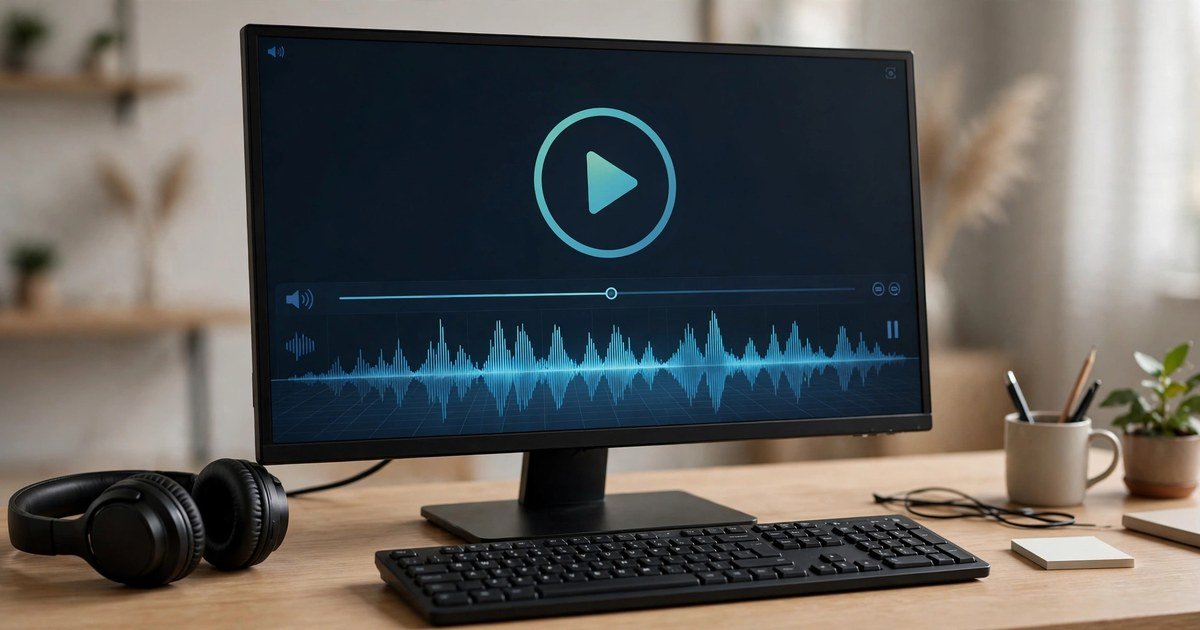
Turn Your Script Into Speech
This is the fun part. Open a free text to speech tool in your browser. No download, no signup. Paste your script in the text box. If your script is very long, cut it into two or three parts. Small parts are easy to fix if something sounds wrong.
Next, pick a voice. Listen to three or four voices and pick the one that fits your channel — calm for explainers, warm for stories, full-energy for news. Use the same voice in all your videos; it becomes your brand. If your viewers speak Hindi or Urdu, check for voices in those languages too. You can even make the same video in English and Hindi, and reach two groups with one script.
Now set the speed. The normal speed is fine for most videos, but a small change helps a lot. For tutorials, make it a little slow. For news and facts videos, a little fast keeps the energy high. Always listen to the full audio before you download it. Never skip this step.
Here is a useful trick. The AI reads exactly what is written. If a word sounds wrong, change how you write it. If Xiaomi sounds strange, write show me. If SEO is read as one word, write S E O with spaces. Small changes fix almost every problem.
When it sounds good, download the audio file. Give it a clear name, like video-05-part1.mp3. Keep all audio files of one video in one folder.
Add the Voiceover to Your Video
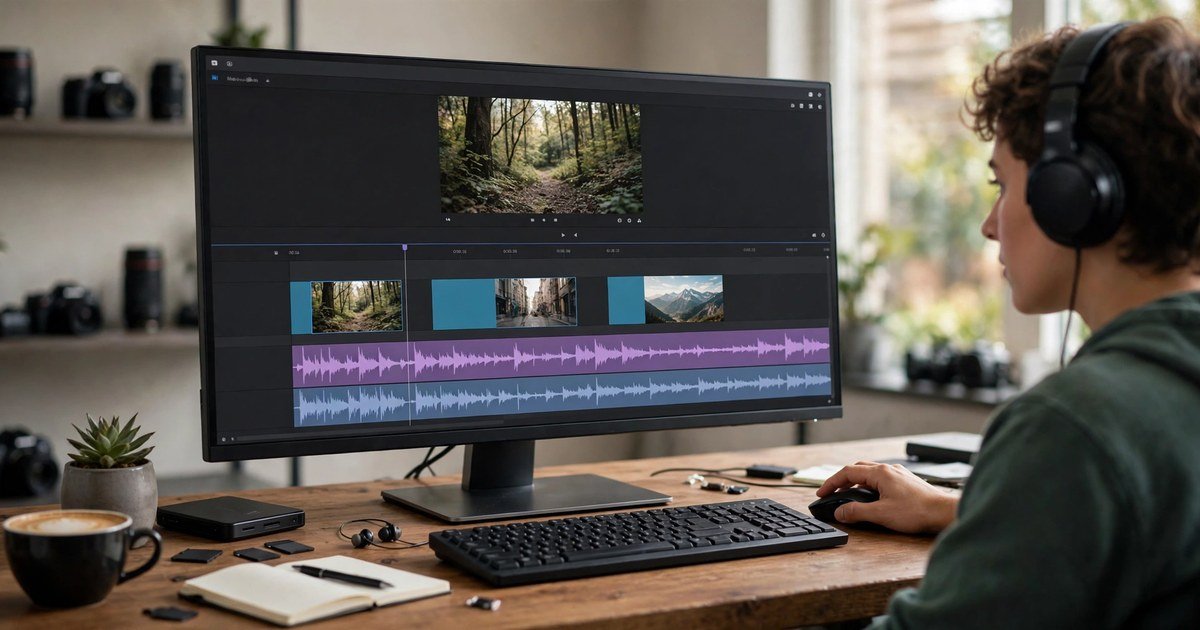
Now open a free video editor. CapCut is free and works on both phone and computer. First add your video clips, pictures, or screen recordings. Then add your voiceover audio files.
Put the voiceover on the timeline and turn off your clips’ own sound. Now match the video with the voice — cut clips so what people see matches what they hear. When the voice talks about five tools, show them on screen. This matching makes a video look professional.
Cut the silent parts. Sometimes the AI audio has small empty gaps in the start or between parts. Zoom in and cut them, so the video moves fast. Long silent parts feel boring, and people leave boring videos.
Add background music, but keep it very low. YouTube has thousands of free songs. Pick soft music with no words. Words in the music fight with the voiceover.
In the end, add subtitles — CapCut makes them in one click. Many watch with no sound, and subtitles keep them till the end. Check for mistakes, then save in 1080p. Your first video is ready.
Tips for a Natural-Sounding Voiceover
These small tips make your voiceover sound like a real person, not a robot.
Use punctuation to guide the voice. A comma means a short stop, a full stop means a full stop, an exclamation mark adds energy. Try writing wait… really?! and hear how surprised it sounds.
Do not make one long audio for a long script. Make the start with more energy, the middle part at normal speed, and the ending warm and friendly. Then join them in the editor.
Check the sound on a phone speaker. Most people will watch on their phones. If it sounds clear on a phone, it will sound good everywhere.
Match the voice mood with the topic. A slow sleepy voice does not fit an exciting story. A shouting voice does not fit a serious topic. Pick the right mood.
Write down your best settings — voice name, speed, pitch. When you use the same settings in every video, people start to know your channel by its sound.
Take a break and listen again. Rest for thirty minutes, then listen with fresh ears. You will catch mistakes you missed before.
Mistakes to Avoid
New YouTubers make the same five mistakes. Avoid them, and your videos will beat most new channels.
Mistake one: writing one big block of text with no punctuation. Long lines with no commas or full stops make the AI rush like it has no breath. Always write short sentences.
Mistake two: making the speed too fast. Fast does not sound energetic. It sounds nervous and hard to follow. A little slower than normal is almost always better.
Mistake three: loud background music. If people cannot hear the voice clearly, they leave. When in doubt, make the music even lower.
Mistake four: not checking spelling. The AI reads what is written, nothing more. Always read your script once, and always listen to the full audio before downloading.
Mistake five: copying someone else’s script. YouTube finds copied content, and copied videos do not grow. Take ideas from others, but write every word yourself. Your own style is your real strength.
Start Creating Today
Now you know all three steps: write a simple script, turn it into speech with a free text to speech tool, and add it to your video in a free editor. No microphone, no studio, no budget — just your ideas and three free tools.
The creators who grow are not the ones with the best equipment. They are the ones who upload again and again. Your first video will not be perfect, and that is fine.
So open the free text to speech tool now, paste your first script, and make your first voiceover today. Your channel is waiting.
Conclusion
A professional YouTube voiceover no longer needs a microphone, a quiet room, or a big budget. With a free text to speech tool, anyone can turn a simple script into clean, natural audio in minutes. Write clearly, choose one voice for your channel, and keep publishing consistently. Your first voiceover video is only three steps away — start today.